What can I do with the Cloaked browser extension?
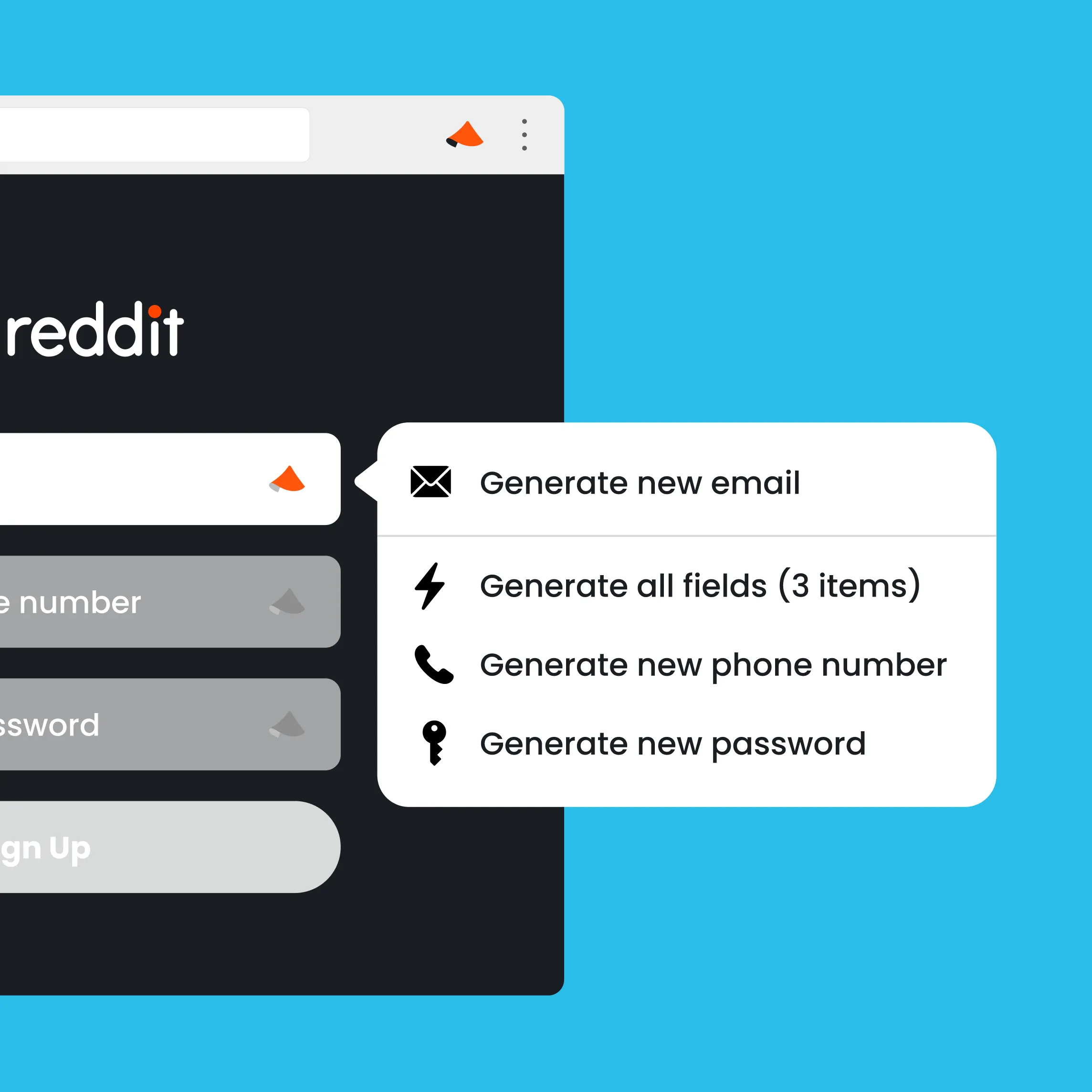
With the Cloaked extension you can:
- Sign up for new accounts with one click
- Easily log in into your existing accounts
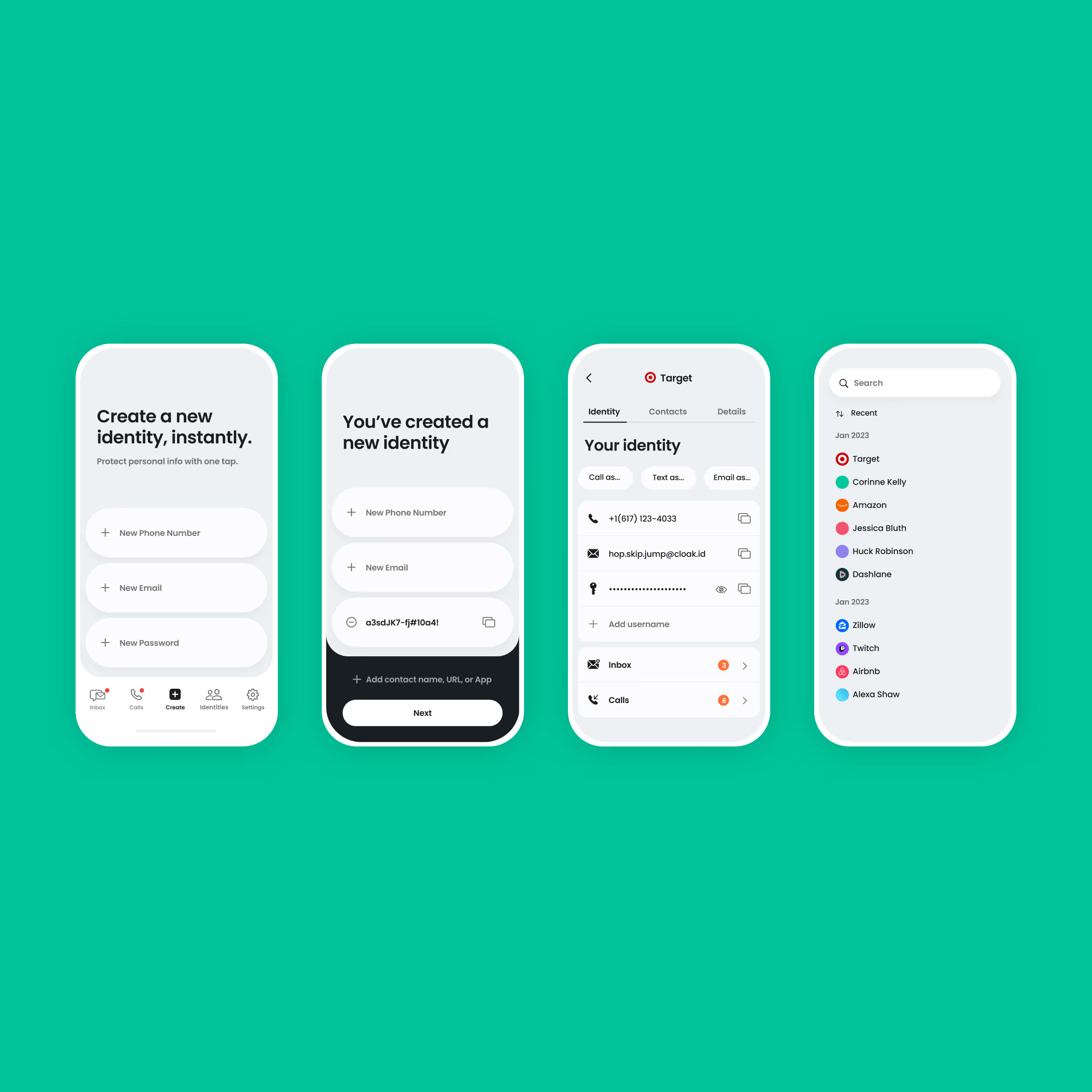
- Generate and manage Cloaked login credentials such as usernames, email addresses, and passwords
How do I install the Cloaked browser extension?
Installing the Cloaked browser is quick and easy! Follow the steps below depending on the browser you use.
Installing on Google Chrome
- Log in to your Cloaked dashboard.
- Click on your profile icon in the top left corner.
- Select “Download Extension” from the dropdown menu.
- You’ll be redirected to the Chrome Web Store. Click on “Add to Chrome”.
- Select “Add Extension” on the popup that appears.
Installing on Brave
- Log in to your Cloaked dashboard.
- Click on your profile icon in the top left corner.
- Select “Download Extension” from the dropdown menu.
- You’ll be redirected to the Chrome Web Store. Click on “Add to Brave”.
- Select “Add Extension” on the popup that appears.
Installing on Microsoft Edge
- Log in to your Cloaked dashboard.
- Click on your profile icon in the top left corner.
- Select “Download Extension” from the dropdown menu.
- You’ll be redirected to the Chrome Web Store. Click on “Allow extensions from other stores” at the top of the page.
- Click on “Add to Chrome”.
- Select “Add Extension” on the popup that appears.
.svg)